
Overview
The Save Project feature allows you to save your progress while working on a project in forma and continue from where you left off at a later time.
This is particularly useful when working in autoForma or freeForma, as you no longer need to complete the entire workflow in a single session.
On the main screen, you can now choose between two options:
- Load an existing project, to continue working on a previously saved project
- Start a new project, to begin a project from scratch
.png)
Starting a New Project
The Start a new project option follows the same workflow as in previous versions of the application.
Use this option when you want to begin a new case from scratch. You can import the required scan and proceed through the usual forma workflow.
Loading an Existing Project
The Load an existing project option allows you to reopen a saved project and continue working from where you previously stopped.
For example, if you have already completed the cleanup and scan correction for an autoForma project, you can reopen the existing project folder later without having to repeat these steps.
This can also be useful when you want to return to an existing project to recreate or modify a model for a patient.
Saving a Project
To make use of the Save Project feature, you first need to complete the cleanup scan.
The cleanup scan and scan correction are now separate steps in the workflow. This separation is necessary because the cleaned scan file needs to be completed and saved before the project can be saved and resumed.
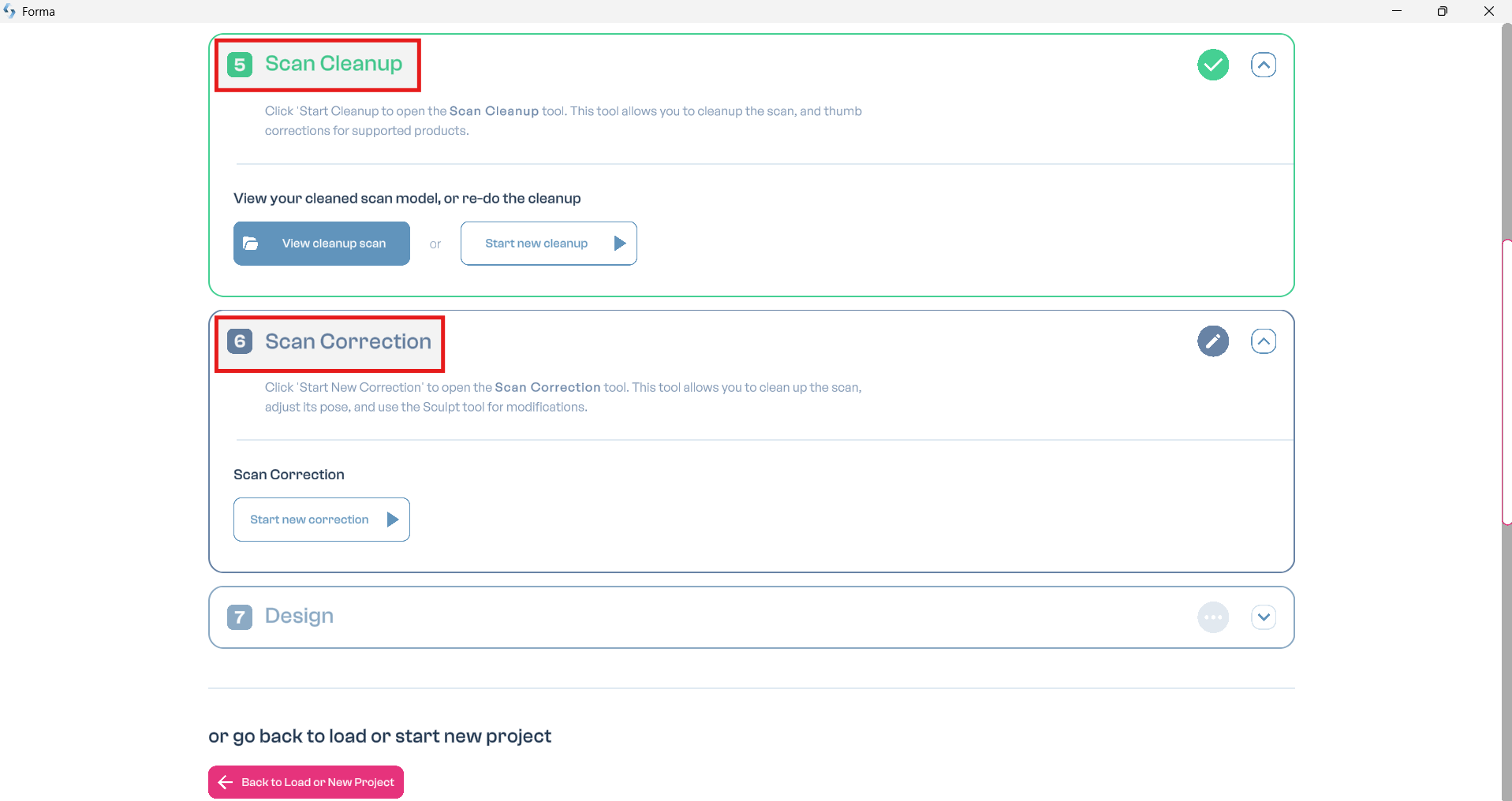
Once the cleanup scan has been completed and saved, you can save the project and leave the application or return to the main screen.
When you are ready to continue, select Load an existing project and open the corresponding project folder.
Continuing After Scan Correction
The project also keeps track of completed steps.
For example, after completing the scan correction:
- Save the corrected scan
- Use Save and Exit to save your progress
- The completed step will be marked as finished in the application
- Leave the current project
- Reopen the project through Load an existing project
You can then continue with the next step of the workflow without having to redo the work you already completed.
Best Practices
To ensure your progress can be resumed correctly:
- Always complete and save the cleanup scan before relying on the Save Project feature
- Use Save and Exit when you want to stop working on a project and continue later
- Reopen saved projects through Load an existing project
- Check which steps are marked as completed before continuing your workflow
With the Save Project feature, autoForma and freeForma projects no longer need to be completed in one session. You can divide your work into multiple steps and continue at a time that better fits your workflow.
To watch the corresponding video, click on this link.