
Overview
The Save Project feature allows you to pause your work on a parametric mold project and continue from where you left off at a later time.
On the main screen, you can choose between two options:
- Load an existing project, to continue working on a previously saved project
- Start a new project, to begin a project from scratch
When loading an existing project, you can return to previously completed or partially completed parts of the workflow without having to restart the entire project.
.png)
Scan Cleanup and Scan Correction
To support the Save Project feature, scan cleanup has been separated from the rest of the scan correction workflow.
The scan cleanup needs to be completed first. Once this is done, you can proceed to the different scan correction levels and save your progress along the way.
The individual scan correction steps themselves have not changed. You can continue to perform actions such as positioning the scan, configuring the mold and adjusting its parameters as before.
Saving Your Parameters
When working within a parametric mold level, it is important to click Next after making changes.
Clicking Next saves the parameters entered during the current step. Once these parameters have been saved, you can return to the menu, load another project or close the application.
For example, if you apply a global reduction of -2.5 mm and make additional changes to the mold configuration, clicking Next ensures that these inputs are saved and can be retrieved when you reopen the project.
If you leave a step without clicking Next, your latest changes may not be saved.
Continuing a Saved Project
To continue working on a saved project:
- Select Load an existing project from the main screen
- Open the relevant project
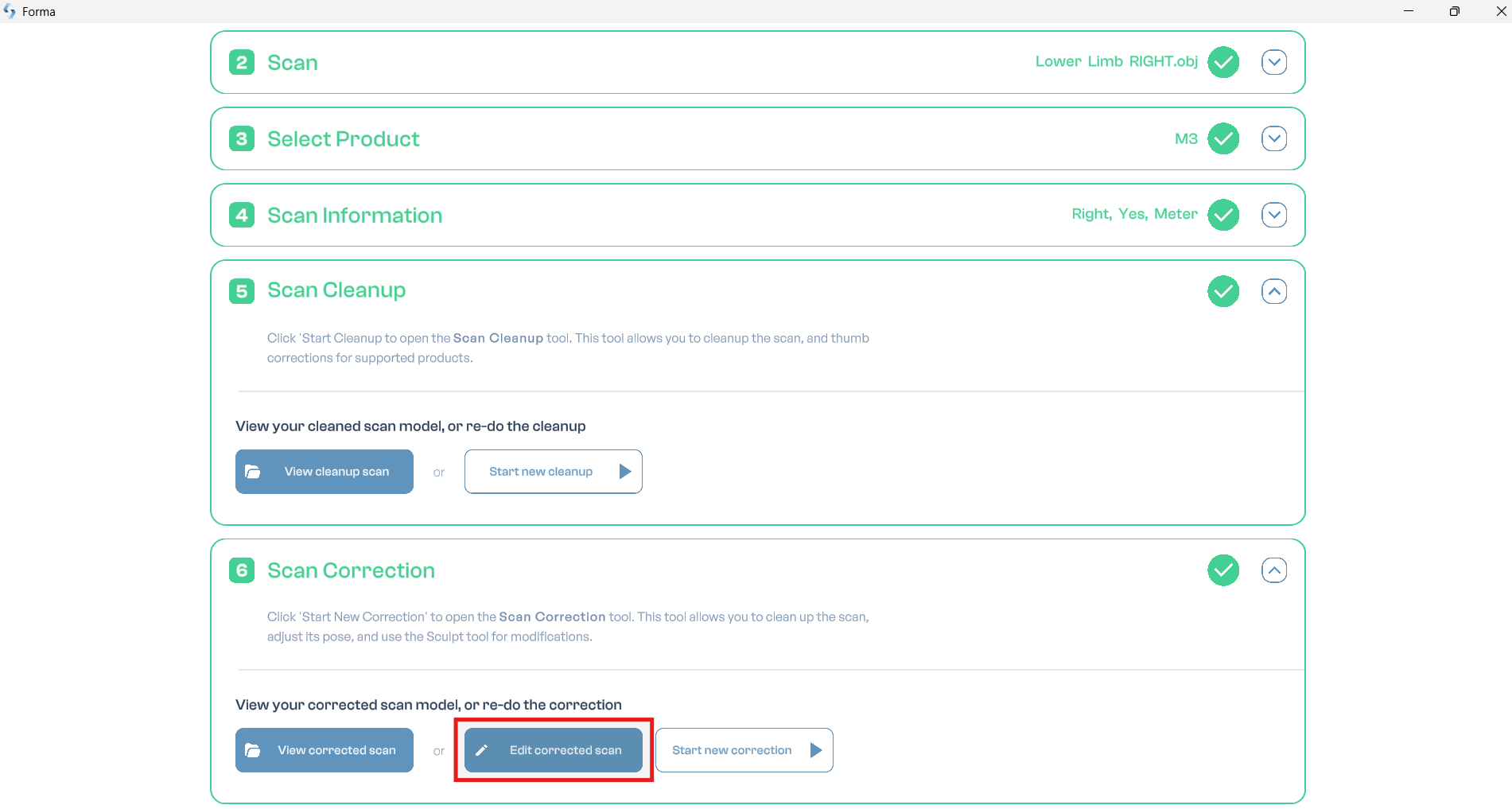
- Select Edit corrected scan
- Navigate to the level where you previously stopped
The application uses different indicators to show the status of each level.
A green check mark indicates that a level has been completed. A disc icon indicates that progress within a level has been saved, but that the level itself has not yet been fully completed.
This makes it easy to identify where you stopped and where you can continue working.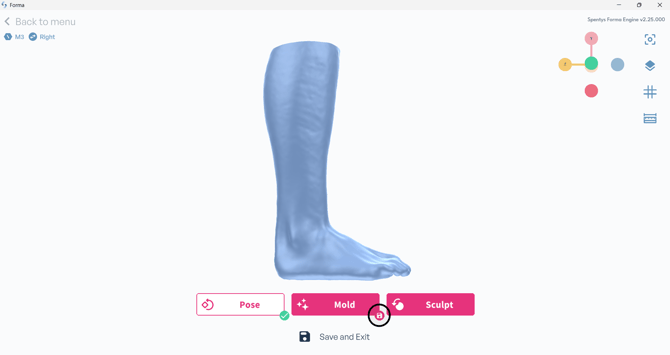
Loading Previous Parameters
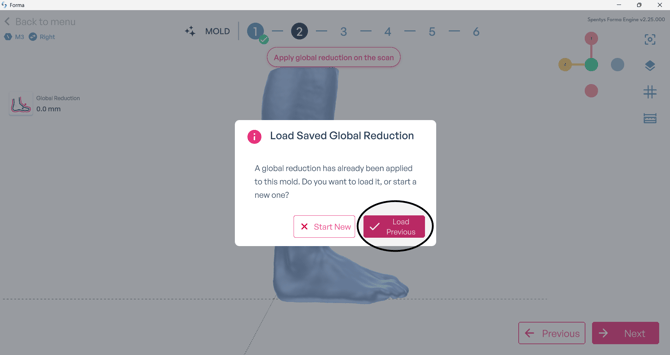
When reopening a saved step, the application asks whether you want to load the previously saved inputs or start again.
If you choose to load the previous inputs, the parameters you entered earlier are restored. For example, a previously entered global reduction of -2.5 mm will still be applied.
The same principle applies to subsequent mold configuration steps. Previously saved parameters can be loaded again, allowing you to continue working with the configuration you created during your previous session.
If you choose to start again instead, the previously saved inputs for that step will be overwritten as you create a new configuration.
Saving Between Steps in Parametric Mold
The Save Project functionality is particularly flexible when working with a parametric mold.
Unlike autoForma, where a level needs to be completed before it can be saved, a parametric mold allows you to save progress within a level and between individual steps.
This means that you can:
- Complete one or more steps within a level
- Save the parameters by clicking Next
- Leave the project before completing the entire level
- Reopen the project later
- Load your previously saved parameters and continue working
This provides greater flexibility for more detailed parametric mold workflows that may not be completed in a single session.
Best Practices
To ensure your progress and parameters are saved correctly:
- Complete the scan cleanup before proceeding with the scan correction
- Always click Next after modifying parameters that you want to save
- Use the status icons to identify completed and partially saved levels
- Choose Load previous when reopening a step if you want to continue with your saved parameters
- Only choose to start again when you intend to replace your previous inputs
With the Save Project feature, parametric mold projects can be completed across multiple sessions while preserving your progress and previously configured parameters.
If you have any questions about this feature, please contact your Customer Success representative for further assistance.
To watch the corresponding video, click on this link.